How to Extract Text from Screenshots on Mac (MacOS Guide)
Quick Answer
To extract text from a screenshot on Mac, open the image in the native Preview app or Quick Look, click and drag your cursor over the text, right-click, and select Copy.
Every time you copy a piece of text on macOS using
For power users who need a seamless way to capture, save, and extract text from images across their entire workflow, download Clipmory for macOS to instantly supercharge your clipboard with persistent history, privacy-first Touch ID locking, and lightning-fast OCR.
Method 1: Use macOS Quick Look and Live Text (Native)
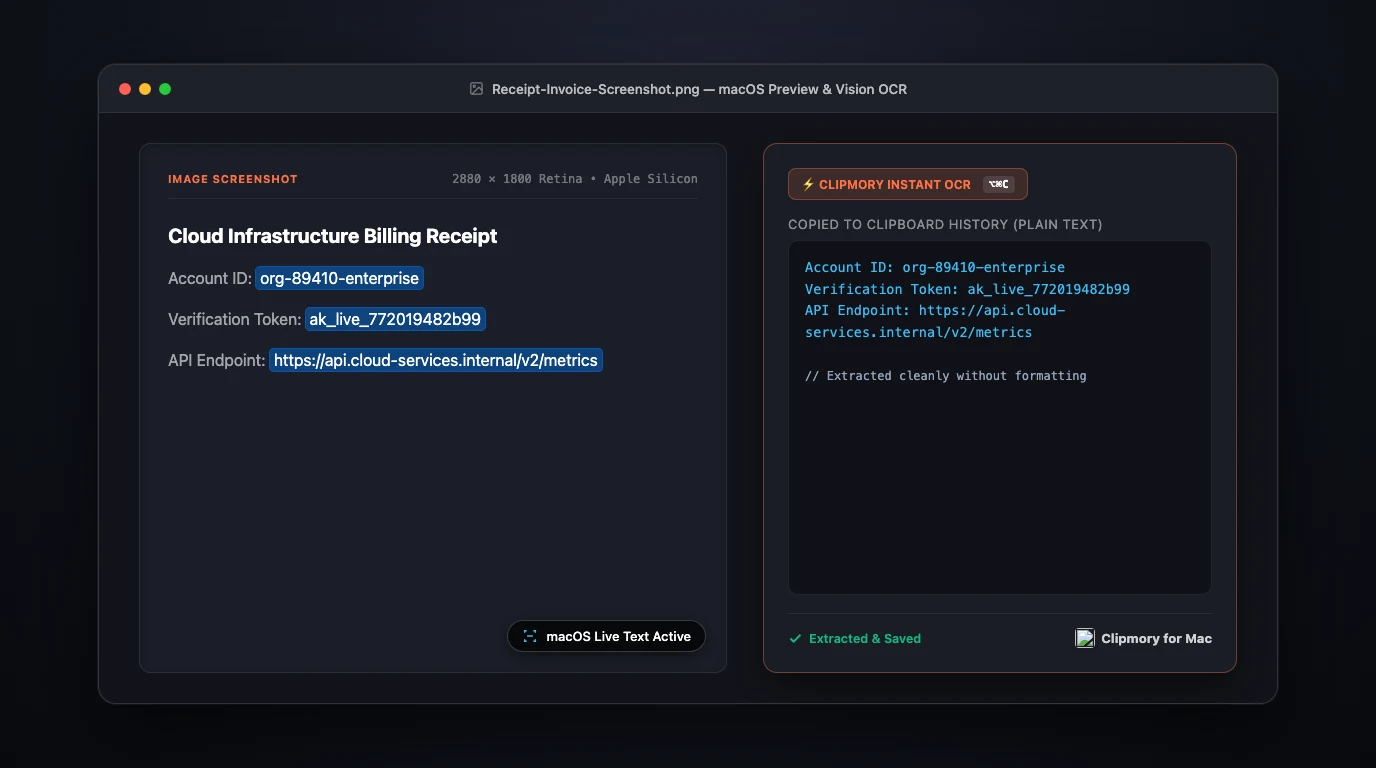
If you have a quick screenshot sitting on your desktop and want to pull text out of it without opening a heavy application, macOS Quick Look features built-in Live Text extraction.
- Locate your image or screenshot file on your Mac.
- Select the file and press the Spacebaron your keyboard to open it in Quick Look.
- Hover your mouse pointer over the text inside the preview window. Your cursor will automatically transform into a text-selection I-beam.
- Click and drag to highlight the text you want to extract.
- Right-click the selection and choose Copy (or press ⌘C).
Method 2: Extract Text Instantly via Preview App
For more control over multi-page documents, PDFs, or complex screenshot files, Apple's native Preview app handles optical character recognition (OCR) natively.
- Double-click your screenshot or image to open it in the Preview app.
- Move your cursor over the text area. Preview will automatically detect selectable text blocks.
- Highlight the required text. If Preview fails to detect it immediately, click the text selection tool in the toolbar.
- Copy the text to your clipboard for pasting into any application.
Limitation Warning: Native macOS tools only allow you to grab text one image at a time. They do not store your extracted text once you copy something else, forcing you to constantly re-open files or re-scan screenshots.
Method 3: The Ultimate Workflow with Clipmory OCR (⌥⌘C)
If you regularly pull text from screenshots, design mockups, or video frames, native macOS apps introduce unnecessary friction. Clipmory eliminates those bottlenecks by combining limitless clipboard history with instant, global OCR extraction.
- Trigger Clipmory's text extraction shortcut: ⌥⌘C.
- Instantly scan any image, screenshot, or graphic on your screen to extract text directly into your searchable clipboard history.
- Access your text anytime using the native history palette, backed by Touch ID authentication to keep sensitive snippets secure.
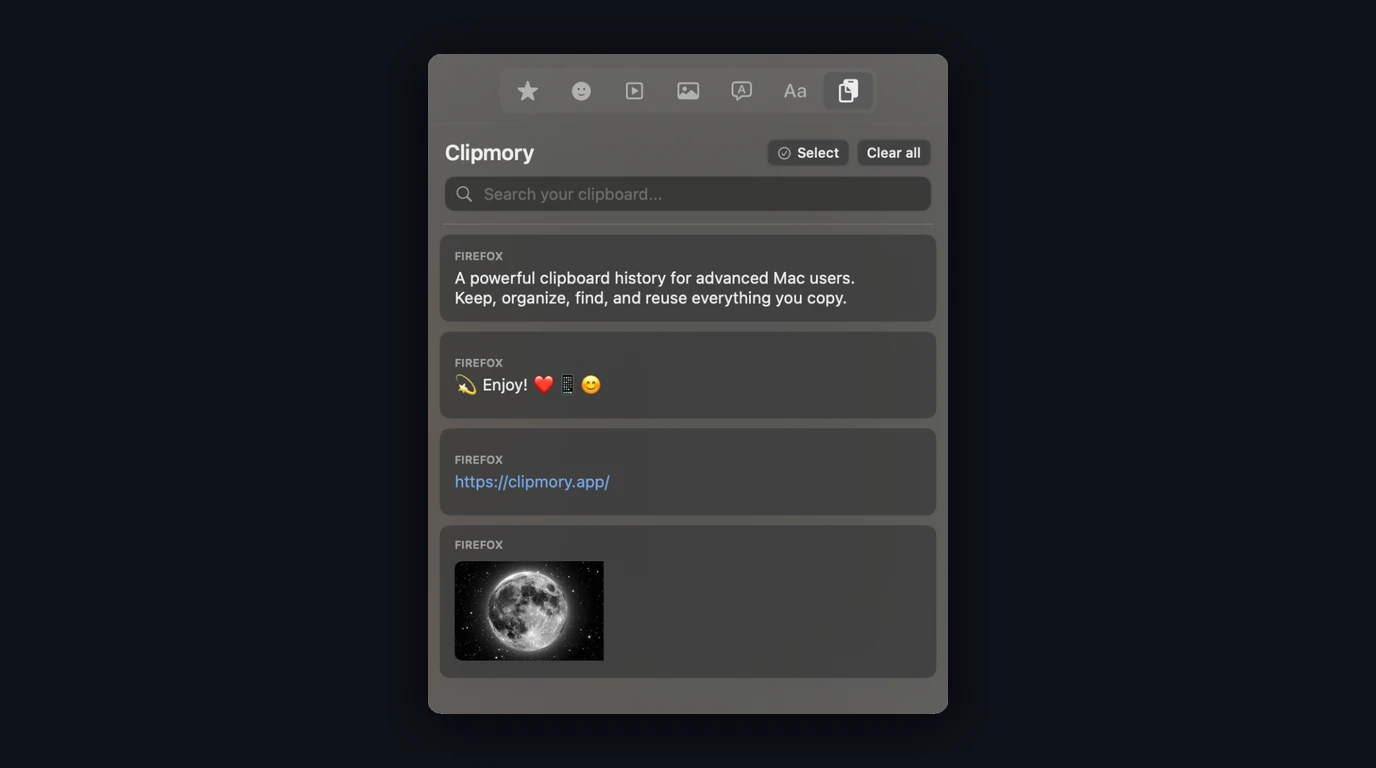
Stop losing your copied snippets to macOS's single-item RAM limitation. Download Clipmory today with a 7-day free trial (full lifetime license available for just $29.99) and transform how you handle images, screenshots, and clipboard text on macOS Sonoma, Ventura, and Sequoia.
Try Clipmory free for 7 days. Swift-native performance, instant search, infinite history, and honest lifetime pricing ($29.99).