Win + V on Mac: How to Access Clipboard History on macOS
Quick Answer
Mac lacks a native Win + V key combination for clipboard history. To view saved clipboard items on macOS, install a dedicated clipboard manager app like Maccy, Raycast, or Paste.
If you recently made the switch from Windows to macOS, one of the first muscle-memory shortcuts you will miss is Win + V. On Windows, pressing Win + V opens a rich history popover containing your previously copied snippets, screenshots, and links. On macOS, pressing ⌘ + V simply pastes the single item currently stored in your memory buffer.
By default, Apple’s operating system enforces a strict single-item clipboard limit. The moment you copy a new piece of text or an image, the previous item is immediately overwritten. Furthermore, whenever you restart or shut down your Mac, your active clipboard item is cleared from volatile RAM entirely.
Clipmory brings full clipboard history, instant search, Touch ID security, and built-in OCR text extraction to macOS Sequoia, Sonoma, and Ventura.
Download Clipmory 7-Day Free Trial (.dmg) — $29.99 lifetime license after trial.
1. Understanding the Native macOS Clipboard (and Its Limitations)
macOS manages clipboard operations through a background system process called pboard (Pasteboard server). While Apple offers basic inter-app copying, the system lacks a multi-item historical buffer out of the box.
macOS does include a basic native clipboard inspector inside Finder, but it only shows the current item in memory:
- Open Finder on your Mac.
- Click Edit in the top menu bar.
- Select Show Clipboard.
This panel will display your currently copied snippet, but it provides no past history, no search feature, and no past items once overwritten.
pbpaste
# Clear active pasteboard buffer by piping empty string
echo -n "" | pbcopy
# Restart the macOS pasteboard background daemon
killall pboard
2. The Native Win + V Solution for Mac: Clipmory
To replicate and exceed the Windows Win + V clipboard experience on macOS, you need a lightweight utility designed specifically for Apple Silicon and macOS system architecture. Clipmory bridges this gap natively without consuming excessive system memory or battery.
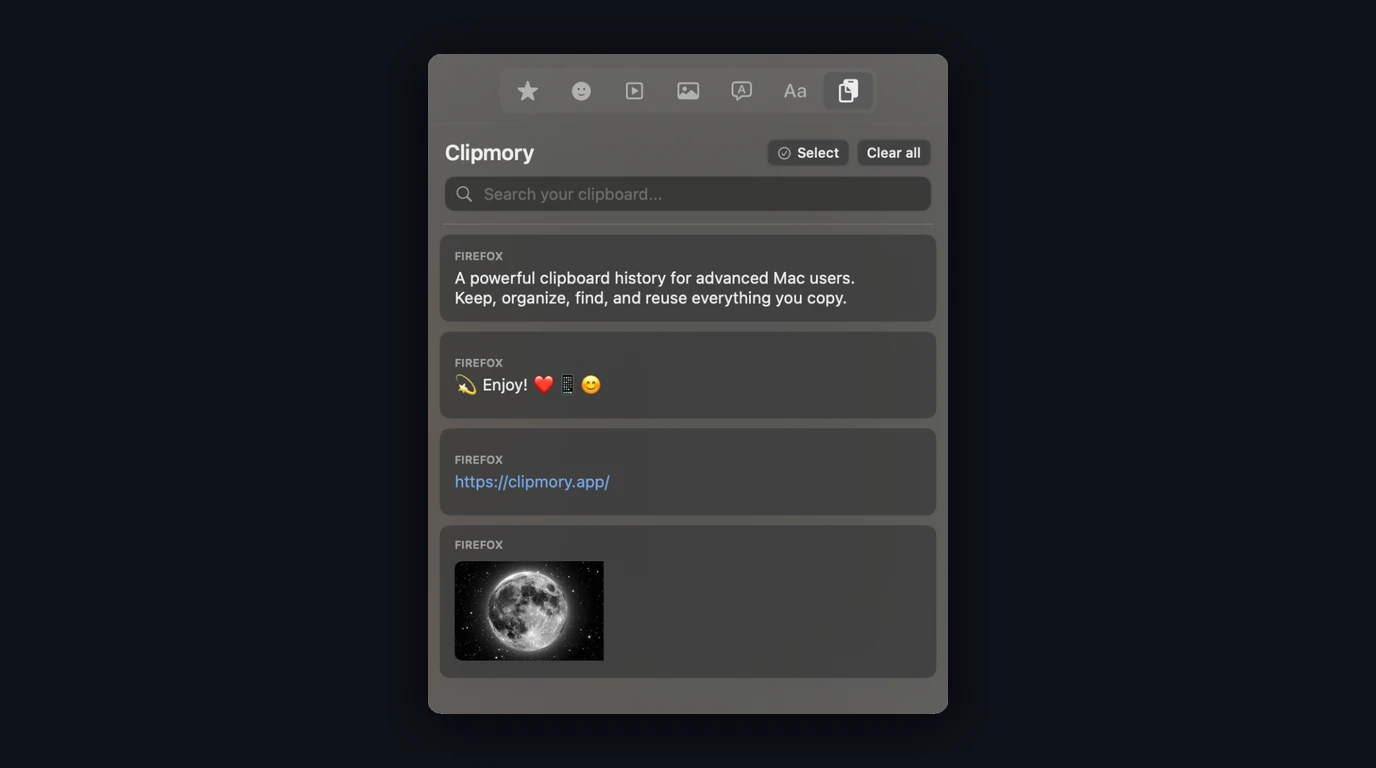
Unlike basic web-wrapper apps, Clipmory is built natively in Swift for peak performance on M1, M2, M3, and M4 Macs. It automatically saves text snippets, formatted code, links, color hex codes, and images to a local, encrypted database.
- Customizable Hotkey: Bind your clipboard manager to
⌘⇧V,⌥⌘V, or any custom key combination to replicate the quick popover workflow of Windows + V. - Touch ID Privacy Protection: Keep sensitive data like passwords, API keys, and personal notes locked behind Apple's Secure Enclave biometrics.
- Instant Optical Character Recognition (OCR): Copy text directly out of images, PDFs, or screenshots using the ⌥⌘Cshortcut.
- Zero Subscription Bloat: Available as a single $29.99 lifetime license with a fully functional 7-day free trial.
3. Extracting Text from Screenshots (Supercharging Your Clipboard)
One major advantage modern clipboard managers have over standard Windows Win + V is the ability to parse text directly out of un-selectable media. Whether you capture a slide during a Zoom call or grab an error code from a video, native OCR turns pixels into editable text immediately.
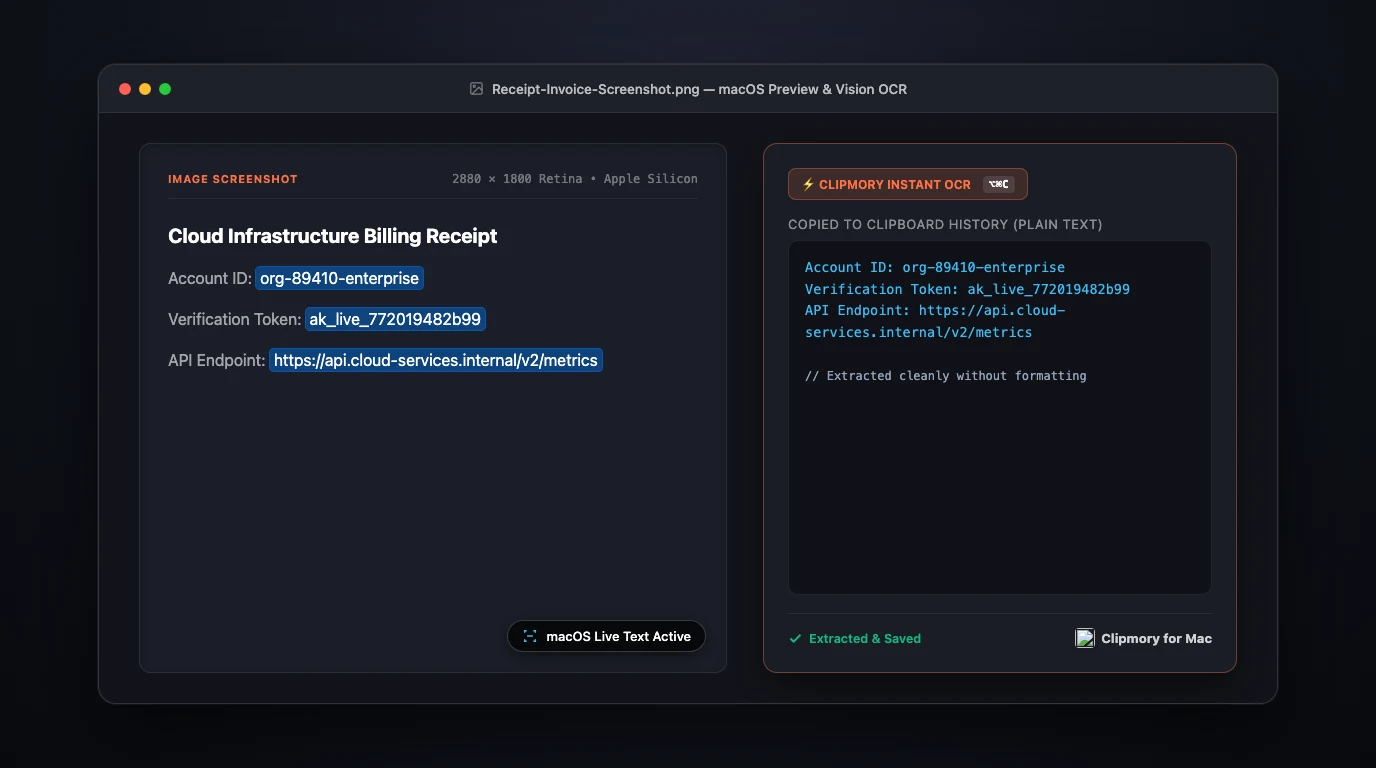
With Clipmory installed, extracting image text fits right into your daily shortcut routine:
- Press
⌘⇧4to take a standard macOS selection screenshot. - Select your screenshot or copy any image file to your clipboard.
- Press ⌥⌘Cto run Clipmory's on-device OCR engine and instantly convert image text into plain text ready for pasting.
4. How to Map a "Win + V" Custom Shortcut on macOS
To make your transition from Windows as seamless as possible, you can map your new clipboard manager directly to a comfortable key combination in macOS System Settings:
- Launch Clipmory on your Mac.
- Click the Clipmory icon in your top Menu Bar and open Preferences.
- Navigate to the Shortcuts tab.
- Click the shortcut recorder field next to Toggle Clipboard Palette.
- Press your preferred key combo (such as
Option + Command + VorCommand + Shift + V).
Windows Key automatically maps to the Mac Command (⌘) key, while the Alt Key maps to Option (⌥).
Summary Comparison
- Native macOS: Single-item buffer, cleared upon restart, no history popover.
- Windows 10/11: Built-in
Win + Vhistory buffer (cleared on reboot unless pinned). - Clipmory on macOS: Unlimited searchable history, encrypted local storage, Touch ID biometrics, offline OCR text recognition (⌥⌘C), and a universal global hotkey popover.
Try Clipmory free for 7 days. Swift-native performance, instant search, infinite history, and honest lifetime pricing ($29.99).